This summer I worked on an interesting and challenging Microsoft Dynamics CRM project for a large university. This project involved not only implementing Microsoft Dynamics CRM, but also integrating 4 other systems with CRM so that CRM became the central repository of student and alumni data, making it easy for users to find data and report from one system.
The kicker is that each of the 4 systems used a different database platform!
The key to making this project successful was the use of Scribe Insight, a tool from Scribe Software (http://www.scribesoftware.com/) used to migrate data into just about any system, and integrate systems. Thanks to the power of Scribe Insight, we were able to integrate all systems with Dynamics CRM.
Here's the rundown of the applications we integrated with Microsoft CRM:
Application: Web-based career center management application
Source Data Format: Text files created by exporting data from the source system
Integration Type: Periodic batch load to CRM
Application: Campus calendar application with events that students register for
Source Data Format: mySQL database
Integration Type: Ongoing two-way real-time integration with CRM
Application: Student information system
Source Data Format: Sybase database
Integration Type: Initial batch load and ongoing one-way real-time integration to CRM
Application: Alumni information system
Source Data Format: Oracle database
Integration Type: Initial batch load and ongoing one-way real-time integration to CRM
Conclusion:
If you ever need to do ANY kind of systems integration work regardless of whether a Dynamics product is involved or not, then I recommend you check out Scribe Insight.
Saturday, November 15, 2008

New feed service for the blog
If you have been receiving e-mails whenever new blog posts are created, then please note that we have decided to replace our current Feedburner service with Feedblitz.
If you wish to continue receiving notifications of the newest posts via e-mail, Skype, Twitter, etc., then please sign up again by entering your e-mail address on the subscription form on the home page of the blog and follow the instructions.
Thanks for reading our blog!
If you wish to continue receiving notifications of the newest posts via e-mail, Skype, Twitter, etc., then please sign up again by entering your e-mail address on the subscription form on the home page of the blog and follow the instructions.
Thanks for reading our blog!
Tuesday, October 28, 2008
Product Downloads for Microsoft Dynamics CRM 4.0 on the Resource Center
Tired of searching for Microsoft Dynamics CRM downloads on the Microsoft web site? Talk about navigating a web in a maze in the dark!
Next time you need to download something related to CRM try the Resource Center first. In the Product Downloads section you will find almost everything you need in one place.
http://rc.crm.dynamics.com/rc/regcont/en_us/op/articles/downloads.aspx
Next time you need to download something related to CRM try the Resource Center first. In the Product Downloads section you will find almost everything you need in one place.
http://rc.crm.dynamics.com/rc/regcont/en_us/op/articles/downloads.aspx
Resource Center:
Product Downloads:
Monday, October 27, 2008
Options for creating a test environment for Microsoft Dynamics CRM 4.0
Do you have a need for a test or development environment for Microsoft Dynamics CRM 4.0?
If you have the Enterprise Edition, then you can take advantage of the multi-tenancy feature to create multiple databases without having to purchase additional Client Access Licenses (CALs).
For example, the URL for your production system might be http://crm.acme.com, while the URL for your test system could be http://crmtest.acme.com and the URL for your development system could be http://crmdev.acme.com.
There would be three different CRM databases, but they could all be stored on the same database server and use the same Active Directory organization.
The disadvantage is the additional cost of the CRM Server license (about 3 times the cost of the Server license for the Professional Edition).
If you have the Professional Edition, then your primary option is to take advantage of the software provided in the MSDN Premium subscription. Note that it's MSDN Premium and NOT MSDN Professional.
This can be confusing because there are a number of different subscription options depending on the version of Visual Studio and MSDN subscription that you purchase. However, the key is to purchase the MSDN PREMIUM subscription.
Compare the various options here.
The most common option is to purchase Visual Studio 2008 Professional with MSDN Premium. Check out all the software you get!

Just remember that all software obtained from the MSDN subscription is for NON-PRODUCTION use only! Learn more at the Frequently Asked Questions page.
If you have the Enterprise Edition, then you can take advantage of the multi-tenancy feature to create multiple databases without having to purchase additional Client Access Licenses (CALs).
For example, the URL for your production system might be http://crm.acme.com, while the URL for your test system could be http://crmtest.acme.com and the URL for your development system could be http://crmdev.acme.com.
There would be three different CRM databases, but they could all be stored on the same database server and use the same Active Directory organization.
The disadvantage is the additional cost of the CRM Server license (about 3 times the cost of the Server license for the Professional Edition).
If you have the Professional Edition, then your primary option is to take advantage of the software provided in the MSDN Premium subscription. Note that it's MSDN Premium and NOT MSDN Professional.
This can be confusing because there are a number of different subscription options depending on the version of Visual Studio and MSDN subscription that you purchase. However, the key is to purchase the MSDN PREMIUM subscription.
Compare the various options here.
The most common option is to purchase Visual Studio 2008 Professional with MSDN Premium. Check out all the software you get!

Just remember that all software obtained from the MSDN subscription is for NON-PRODUCTION use only! Learn more at the Frequently Asked Questions page.
Navint’s 2008 NY Dynamics Client Summit at Casa Larga on October 29
Do you like wine? Do you use any of the Microsoft Dynamics or Business Intelligence products, such as Dynamics CRM, Dynamics GP, or Microsoft Office SharePoint Server 2007?
If so, then you're in luck!
You have the once-in-a-year opportunity to attend the annual New York Dynamics Client Summit at Casa Larga Vineyards in Fairport, NY on Wednesday, October 29.
This will be a fun, information-packed event, so I encourage you to attend.
Learn more and register here.
I hope to see you there!
If so, then you're in luck!
You have the once-in-a-year opportunity to attend the annual New York Dynamics Client Summit at Casa Larga Vineyards in Fairport, NY on Wednesday, October 29.
This will be a fun, information-packed event, so I encourage you to attend.
Learn more and register here.
I hope to see you there!
Sunday, March 30, 2008
Microsoft CRM 3.0 - Update Rollup 3
In case you haven't heard, Microsoft has released Update Rollup 3 for Microsoft Dynamics CRM 3.0. This update rollup contains all of the fixes that were covered in the earlier Update Rollups (1 and 2) as well as additional fixes.
For more information about Update Rollup 3 click here.
To download Update Rollup 3 click here.
As always, when considering applying an Update Rollup please take care in understanding the associated warnings, prerequisites and recommendations made by Microsoft and Navint.
If you have questions about Update Rollup 3 please contact us.
For more information about Update Rollup 3 click here.
To download Update Rollup 3 click here.
As always, when considering applying an Update Rollup please take care in understanding the associated warnings, prerequisites and recommendations made by Microsoft and Navint.
If you have questions about Update Rollup 3 please contact us.
Thursday, March 13, 2008
Convergence 2008 Fun - Simulated Sky Diving
Navint's Director of Marketing, Amy Spencer (who totally kicks butt), put together an amazing Convergence Agenda this year including a few hours of simulated sky diving at a place called SkyVentures right down the street from all the happenings at Convergence.

Notes From Convergence 2008
For those of you at Convergence this week - whether or not you've attended any Microsoft CRM specific sessions - you've heard all the buzz about Microsoft CRM anyway.
Not surprising, especially considering the recent launch of Microsoft Dynamics CRM 4.0 and the soon to be released Microsoft CRM Live (a SaaS version of the same product).
For the Microsoft Dynamics CRM related sessions that I've been able to attend, the repeating themes include:
- Prebuilt in-application dashboards (not SharePoint dependant)
- Improved integration with other line of business Dynamics applications (GP, SL, AX, NAV, SharePoint)
- Enhanced customization tools (i.e., do really cool stuff with even less need for coding)
- Even better Outlook client performance and stability
- And the best for last... interoperability with PerformancePoint (promise to blog about this in detail later!)
Stay tuned...
PS - Got a sneak peek at CRM 5.0 as well but can't really say anything about it since they asked us to sign NDAs.
Not surprising, especially considering the recent launch of Microsoft Dynamics CRM 4.0 and the soon to be released Microsoft CRM Live (a SaaS version of the same product).
For the Microsoft Dynamics CRM related sessions that I've been able to attend, the repeating themes include:
- Prebuilt in-application dashboards (not SharePoint dependant)
- Improved integration with other line of business Dynamics applications (GP, SL, AX, NAV, SharePoint)
- Enhanced customization tools (i.e., do really cool stuff with even less need for coding)
- Even better Outlook client performance and stability
- And the best for last... interoperability with PerformancePoint (promise to blog about this in detail later!)
Stay tuned...
PS - Got a sneak peek at CRM 5.0 as well but can't really say anything about it since they asked us to sign NDAs.
Tuesday, March 4, 2008
Microsoft Dynamics CRM 4.0 Hotfix List
Although you've got to be a Microsoft Partner or Microsoft Customer to get access (via PartnerSource and CustomerSource respectively), thanks to this post by Microsoft's Ben Vollmer we now know where to go to get the most current listing of Microsoft CRM 4.0 related hotfixes.
Thanks Ben!
Thanks Ben!
Monday, March 3, 2008
Microsoft CRM 4.0 Launch Event - In Your Home Town?
I know you've missed me so here's the top three on why it's been so long since my last post:
1) I decided to change my focus to an application even cooler Microsoft Dynamics CRM
2) My girlfriend hates it when I use weekends to write blog posts
3) Prospect and customer interest in the new version of Microsoft CRM is totally gangbusters
Well, let me clarify...
1) There actually is no application cooler than Microsoft Dynamics CRM (unless you are comparing version 4.0 to 3.0)
2) We never hang out near a computer so hating isn't even possible
3) It's truly like I said it: Prospect and customer interest in Microsoft CRM 4.0 is gangbusters
I'm serious... Navint has got something like 10 active Microsoft CRM projects going on since the beginning of 2008.
So if you have some time and you want to check out what all the new-CRM-version-commotion is about, come hang out with your favorite Navinteer at any of the following Microsoft Dynamics CRM Launch events:
March 5 - Rochester, NY**
March 18 - New York, NY
March 18 - Los Angeles, CA
March 19 - Hartford, CT**
March 20 - Boston, MA
March 20 - Huntington Beach, CA
Because the two are designed to work well teogether, the dates/locations marked above with a ** will have a Microsoft CRM 4.0 with SharePoint focus.
Let us know if you have any questions. Otherwise, see you there.
PS - The above list is not exhaustive. For a complete list of Microsoft CRM 4.0 Launch dates and locations, click here.
1) I decided to change my focus to an application even cooler Microsoft Dynamics CRM
2) My girlfriend hates it when I use weekends to write blog posts
3) Prospect and customer interest in the new version of Microsoft CRM is totally gangbusters
Well, let me clarify...
1) There actually is no application cooler than Microsoft Dynamics CRM (unless you are comparing version 4.0 to 3.0)
2) We never hang out near a computer so hating isn't even possible
3) It's truly like I said it: Prospect and customer interest in Microsoft CRM 4.0 is gangbusters
I'm serious... Navint has got something like 10 active Microsoft CRM projects going on since the beginning of 2008.
So if you have some time and you want to check out what all the new-CRM-version-commotion is about, come hang out with your favorite Navinteer at any of the following Microsoft Dynamics CRM Launch events:
March 5 - Rochester, NY**
March 18 - New York, NY
March 18 - Los Angeles, CA
March 19 - Hartford, CT**
March 20 - Boston, MA
March 20 - Huntington Beach, CA
Because the two are designed to work well teogether, the dates/locations marked above with a ** will have a Microsoft CRM 4.0 with SharePoint focus.
Let us know if you have any questions. Otherwise, see you there.
PS - The above list is not exhaustive. For a complete list of Microsoft CRM 4.0 Launch dates and locations, click here.
Thursday, January 24, 2008
Migrating data from Salesforce.com to Microsoft CRM 4.0 using the Data Migration Manager
I just finished migrating data from Salesforce.com to Microsoft CRM 4.0 using the new Data Migration Manager (DMM) that works with CRM 4.0.
Overall, I was impressed with the DMM. It took some time to learn how it handled certain attributes (e.g., picklists, lookups, statuses, and users).
Pros:
Cons:
Conclusion:
While I still recommend Scribe for more complex data migrations (and it's always more complex than you think), I believe the Data Migration Manager is a valid solution for many projects. Be sure to investigate the DMM as an option for your next data migration project.
Overall, I was impressed with the DMM. It took some time to learn how it handled certain attributes (e.g., picklists, lookups, statuses, and users).
Pros:
- It's free.
- Does more than the Data Import Wizard available from within CRM.
- Can create custom entities and attributes for you, automatically!
- Can process multiple files at one time.
- Can establish relationships between records in different entities (e.g., set the parent account for a contact).
- Did I mention it's free?
Cons:
- Takes some time to learn how to use it correctly. If you haven't used it before, budget some time for this learning process (at least 2-4 hours).
- Works only with Text/CSV file formats.
- Can't handle files larger than 32 MB.
- Slow migrating from larger files (~10,000 records).
- More difficult to do more complex tasks such as transform data (e.g., use formulas). Rather than an easy-to-use interface such as one that Scribe Insight provides, you usually need to modify an XML file (uggh!).
- Even though there was a map for the Salesforce.com data, it did not handle everything. I ended up creating my own maps so I could become familiar with the data and have more control over the process.
Conclusion:
While I still recommend Scribe for more complex data migrations (and it's always more complex than you think), I believe the Data Migration Manager is a valid solution for many projects. Be sure to investigate the DMM as an option for your next data migration project.
Thursday, December 20, 2007
Microsoft Dynamics CRM 4.0 is available! Download it here.
Want to get your hands on Microsoft CRM 4.0? Check out all the links below. E-mail us if you have questions or would like a demo.
Server Applications:
Client Applications:
Documentation (manuals, help files, and white papers):
- Microsoft Dynamics CRM 4.0 Server Readme
- Microsoft Dynamics CRM 4.0 Implementation Guide
- Microsoft Dynamics CRM 4.0 E-mail Router Readme (On-Premise and Hosted Editions)
- Microsoft Dynamics CRM 4.0 Data Migration Manager Readme
- Microsoft Dynamics CRM 4.0 Internet Facing Deployment Scenarios
- Microsoft Dynamics CRM 4.0: How to configure the on-premise E-mail Router in different deployment scenarios
Server Applications:
Client Applications:
Monday, December 17, 2007
Give Salesforce.com $10,000... For What Is Already Yours!
While commonly known that Saleforce.com charges its customers for their data - you will cry when you hear this...
This morning I was talking to one of Navint's new Microsoft CRM customers. They are in the process of terminating their relationship with Salesforce.com.
It turns out that their contract with Salesforce.com requires them to pay $10,000.00 for a full cut of their data. The only thing they can get for free is a flat file of Account and Contact data.
IMPORTANT NOTE: With the introduction of Microsoft's customer relationship management SaaS offering (CRM Live), when you decide to "switch" you're NOT going to get charged for data that is rightfully yours.
And for those of you...
1) Responsible for doing vendor comparisons - please add this to your list of items to consider when calculating TCO.
2) Responsible for negotiating contractual relationships with CRM vendors - make sure to draw attention to such clauses so that you don't have to end up paying for what is yours.
PS - Maybe this is why Marc Benioff is so defensive regarding CRM Live.
This morning I was talking to one of Navint's new Microsoft CRM customers. They are in the process of terminating their relationship with Salesforce.com.
It turns out that their contract with Salesforce.com requires them to pay $10,000.00 for a full cut of their data. The only thing they can get for free is a flat file of Account and Contact data.
IMPORTANT NOTE: With the introduction of Microsoft's customer relationship management SaaS offering (CRM Live), when you decide to "switch" you're NOT going to get charged for data that is rightfully yours.
And for those of you...
1) Responsible for doing vendor comparisons - please add this to your list of items to consider when calculating TCO.
2) Responsible for negotiating contractual relationships with CRM vendors - make sure to draw attention to such clauses so that you don't have to end up paying for what is yours.
PS - Maybe this is why Marc Benioff is so defensive regarding CRM Live.
Sunday, December 16, 2007
Microsoft CRM 4.0 Ships!
As reported by Micheal Lu and Ben Vollmer from Microsoft, it looks like Microsoft CRM 4.0 (Titan) has shipped!

Stay tuned for more details!
We'll be happy to demo the new version for you!

Tuesday, October 23, 2007
New From c360 | BI Analytics for Microsoft Dynamics CRM
I sat in on a totally killer demo today of c360's new BI Analytics toolset. This is a really neat tool which provides the capability (via cubes) to create Dashboards and KPIs within 10-15 minutes. Seriously. The only thing you need to be running in addtion to the regular system requirements for Microsoft CRM is SQL Server Analysis Services (i.e., SQL 2005 SP 2). I've included a couple of screenshots below. More information can be found at c360's website.


Screenshot 1 - Creating A New Cube:

Screenshot 2 - A Finished Dashboard:

Saturday, October 20, 2007
Microsoft CRM 4.0 (Titan) Features Overview
Microsoft CRM 4.0 is almost here!
Yes, version 3.0 is great but Microsoft CRM 4.0 (code named Titan) rocks. Microsoft finally lifted the NDA restrictions on October 1st so we can finally share with you what we can all look forward to in version 4.0.
If you were lucky enough to attend any of Navint's client summits in New England or New York, then you already saw and heard a bunch of what follows. If not then here's the top ten Titan features list that Mike Cross, Kris Kratky and I put together for Navint's recent client summits.
Note: There's one more Navint client summit scheduled on October 25th in LA for our West Coast clients.
Anyway, here's the the Microsoft CRM 4.0 top ten list. Let us know if you have any questions or if you want to see a demo of the new version.
(Disclaimer: What you are about to see is subject to change prior to Microsoft CRM 4.0's release at the end of this year.)
Navint's /Microsoft CRM 4.0 Top Ten
1) User Interface and Office Integration
- Office 2007 UI
- All CRM Activity Types Integrated with Outlook (get pop-up reminders for phone calls, etc.)
- Background Synch (no more manual synching)
- Word Mail Merge (for the web client too)
- Export to Excel (now includes access to EVERY object schema in Microsoft CRM)
- OneNote Integration
- Presence Management (with integration to Live Communication Server)
- Dynamics (GP, SL, NAV, AX) Integration


2) Architecture
- Multi-Tenant Architecture (CRM Live, Cheaper intra-enterprise deployments)
- Support For Internet Facing Deployment (no VPN needed!)
3) Internationalization
- Multi-Language (user-defined language specific UI)
- Multi-Region
- Multi-Currency (exchange rates are stored within the database)

4) Data Analysis
- Improved Advanced Find (now includes access to EVERY object schema in Microsoft CRM)
- Export to Excel (ODBC live/dynamic link)
5) Workflow and Reporting
- Workflow Manager (web client, added triggers, all entities support stages, Win WF based)
- Report Scheduling Utility
- SRS Report Wizard (create an SRS report in 7 clicks!)


9) Developer Treats
- Server Side SDK
- Offline SDK (improve online/offline consistency)
- Offline APIs (improve online/offline consistency)
- Plug-ins (replace call outs)
10) Resource Center
- New Menu Item
- Find and Share Best Practices
- Access Online Help
- Submit Support Requests (from within the application)
Yes, version 3.0 is great but Microsoft CRM 4.0 (code named Titan) rocks. Microsoft finally lifted the NDA restrictions on October 1st so we can finally share with you what we can all look forward to in version 4.0.
If you were lucky enough to attend any of Navint's client summits in New England or New York, then you already saw and heard a bunch of what follows. If not then here's the top ten Titan features list that Mike Cross, Kris Kratky and I put together for Navint's recent client summits.
Note: There's one more Navint client summit scheduled on October 25th in LA for our West Coast clients.
Anyway, here's the the Microsoft CRM 4.0 top ten list. Let us know if you have any questions or if you want to see a demo of the new version.
(Disclaimer: What you are about to see is subject to change prior to Microsoft CRM 4.0's release at the end of this year.)
Navint's /Microsoft CRM 4.0 Top Ten
1) User Interface and Office Integration
- Office 2007 UI
- All CRM Activity Types Integrated with Outlook (get pop-up reminders for phone calls, etc.)
- Background Synch (no more manual synching)
- Word Mail Merge (for the web client too)
- Export to Excel (now includes access to EVERY object schema in Microsoft CRM)
- OneNote Integration
- Presence Management (with integration to Live Communication Server)
- Dynamics (GP, SL, NAV, AX) Integration


2) Architecture
- Multi-Tenant Architecture (CRM Live, Cheaper intra-enterprise deployments)
- Support For Internet Facing Deployment (no VPN needed!)
3) Internationalization
- Multi-Language (user-defined language specific UI)
- Multi-Region
- Multi-Currency (exchange rates are stored within the database)

4) Data Analysis
- Improved Advanced Find (now includes access to EVERY object schema in Microsoft CRM)
- Export to Excel (ODBC live/dynamic link)
5) Workflow and Reporting
- Workflow Manager (web client, added triggers, all entities support stages, Win WF based)
- Report Scheduling Utility
- SRS Report Wizard (create an SRS report in 7 clicks!)
6) Data Integrity and Enhancements
- Data Enrichment (Export CRM data to excel > Update it > Import it to update CRM records)
- Configurable Duplicate Detection (includes cross-enterprise notifications)
- Data Enrichment (Export CRM data to excel > Update it > Import it to update CRM records)
- Configurable Duplicate Detection (includes cross-enterprise notifications)


7) Data Import and Migration
- Data Import Wizard (supports import of data into ANY entity)
- Asychronous Processing (improve the speed of importing data)
8) Entity Relationships
- Many to Many
- System to System
- Self Referential
- Data Import Wizard (supports import of data into ANY entity)
- Asychronous Processing (improve the speed of importing data)
8) Entity Relationships
- Many to Many
- System to System
- Self Referential
(Do you have any idea what this means?! Woo-hoo is all I can say!)

9) Developer Treats
- Server Side SDK
- Offline SDK (improve online/offline consistency)
- Offline APIs (improve online/offline consistency)
- Plug-ins (replace call outs)
10) Resource Center
- New Menu Item
- Find and Share Best Practices
- Access Online Help
- Submit Support Requests (from within the application)
With over 100 new features in Microsoft CRM 4.0, this top ten list barely scratches the surface. Future posts will get into much greater detail. We promise.
Please email us or give us a call if you want to see a Microsoft CRM 4.0 demo.
Also, Microsoft has promised Navint that upgrades to 4.0 are going to be smooth and seamless. More on that subject in future posts. Stay tuned.
Wednesday, September 19, 2007
What is a Lead in Microsoft Dynamics CRM?
One of the most common issues that crops up during a Microsoft CRM implementation is the confusion around the definition and purpose of the Lead entity, and how it relates to other common terms such as Suspect, Prospect, and Sales Opportunity. Confusion is particularly common among users of ACT!, Goldmine, and other contact managers due to the way these applications are designed.
Let's clear up the confusion once and for all! In this article, I do the following:
- Define a Lead in Microsoft CRM
- Explain how Suspects and Prospects are tracked as Leads in Microsoft CRM
- Explain how a Lead is converted to a Sales Opportunity, as well as an Account and/or Contact
By the end of the article, you should be able to envision how to use Microsoft CRM to track your leads.
Definition of Lead in Microsoft CRM
A lead in Microsoft CRM is either a Suspect or a Prospect:
- Suspect - a person who might be interested in what you sell but who has not yet indicated any interest. An example might be a list of people purchased from a service such as InfoUSA or D&B, or a list of names compiled from a telephone book.
- Prospect - a person who has expressed interest in what you sell, but who has not yet met the criteria to be considered a Sales Opportunity. An example might be a person who registered to download a whitepaper or to attend a webinar, but whom you have not yet qualified.
That's it! That's all a Lead is in Microsoft CRM.
In Microsoft CRM, Leads are separate from Accounts and Contacts. The main benefit of this design is the ease of segregating people who are very early in the sales process from those who are further along. In some organizations, sales people don't work with Leads in Microsoft CRM. Instead, it is the marketing people who work with Leads, and then once the Lead is converted to an Opportunity, the sales folks take over.
Keeping Leads separate from Accounts, Contacts, and Opportunities also makes it easier to develop workflow rules, reports, and security access.
How Suspects and Prospects are tracked as Leads in Microsoft CRM
Suspects and Prospects are both tracked as Leads in Microsoft CRM. Since this is the case, and since there is no standard out-of-the-box way to classify a Lead as a Suspect or Prospect (which is very important!), each organization needs to determine how to classify a Lead.
The most common method is to add a custom picklist attribute (done very quickly and easily) with two options: Suspect and Prospect. Another option is to add a bit attribute formatted as two radio buttons, with one button for Suspect and the second button for Prospect. See the screenshot below illustrating both options (click on the image to see a larger version).

How a Lead is Converted to an Account, Contact, and Sales Opportunity
Okay, so your lead was first a Suspect, then became a Prospect, and you have now determined that this is Prospect meets the criteria to be considered a Sales Opportunity, with a defined product or service to purchase and estimated buying timeframe. So what do you do with this Lead?
You click a button and convert it to a Sales Opportunity (or just Opportunity in Microsoft CRM).
Here is the ensuing dialog box. Note that with one click of a button, you can create three different records (Account, Contact, Opportunity) copying data from the Lead.
Once the Lead has been converted, this is what it looks like. Note that the fields are greyed-out (signifying that they are read-only) and that the status of "Qualified" appears in the lower left corner of the form.
Conclusion
And that's how a Lead is tracked in Microsoft CRM! There is a lot more to Lead Management than what this article discusses (capturing leads from a website, automating the assignment of leads, implementing a lead nurturing program, lead qualification criteria, etc.), but I hope that this helps you understand how your organization could start to use Microsoft CRM to manage your leads.
Friday, August 17, 2007
Free Guide and Templates for Using Bulk Import Wizard
A couple of weeks ago, I posted an entry on migrating/importing data into Microsoft CRM.
Since then, I have created two tools for our clients:
Until I can get these documents saved on one of our websites, you may get your own copy by sending an e-mail to me at mcross (at) navint (dot) com (I'm sure you can figure out the actual e-mail address. It's written this way to minimize harvesting of my e-mail address by spammers).
Just help me out and be sure to have "Free Microsoft CRM data import tools" in the subject of your e-mail.
Also, I will be sending you an e-mail with two attachments. To avoid problems with spam filters, please whitelist my e-mail address and be sure that your spam filters allow file attachments.
Enjoy!
Michael Cross
Microsoft Dynamics CRM Consultant
http://www.navint.com
http://navintmicrosoftcrm.blogspot.com
Since then, I have created two tools for our clients:
- Navint Guide to Importing Data into Microsoft Dynamics CRM 3.0 Using the Bulk Import Wizard (Adobe PDF file)
- Navint Template for Bulk Import Wizard (Microsoft Excel file)
Until I can get these documents saved on one of our websites, you may get your own copy by sending an e-mail to me at mcross (at) navint (dot) com (I'm sure you can figure out the actual e-mail address. It's written this way to minimize harvesting of my e-mail address by spammers).
Just help me out and be sure to have "Free Microsoft CRM data import tools" in the subject of your e-mail.
Also, I will be sending you an e-mail with two attachments. To avoid problems with spam filters, please whitelist my e-mail address and be sure that your spam filters allow file attachments.
Enjoy!
Michael Cross
Microsoft Dynamics CRM Consultant
http://www.navint.com
http://navintmicrosoftcrm.blogspot.com
Tuesday, August 14, 2007
Using Scribe to monitor queues in Microsoft CRM
Recently, we were working on a project, and one of the requirements the client had was to automatically notify the appropriate users when new items entered each of the queues in Microsoft CRM. The purpose was to ensure that the users monitored the queues in a timely fashion, without having to be logged into CRM or having to remember to check the queues every 5 minutes.
I was thinking of having a developer create a Windows service that ran queries against the queue and queueitem tables, determined if any new items had entered the queue since the last time the service ran, and if so, send notifications to the appropriate people for each queue. Each queue would require its own e-mail message and recipients.
However, this solution required custom programming, and we did not have the time or budget to go this route. Therefore, the only way we could do this was to use workflow rules.
Now, using workflow rules might seem like a good solution...until it's time to implement. Here's the problem we experienced:
Workflow rules are based on a specific entity. In our case, we needed to create similar workflow rules for 6 entities: task, e-mail, fax, phone call, service activity, and case.
So, if we had 6 entities that could be assigned to queues, and we had 5 queues to which these 5 entities could be assigned, that translates into 30 workflow rules! What a royal pain in the rear to create and maintain!
You might think that we could have created workflow rules for the queue entity, and you would be wrong. Queues and queue items are not valid for workflow rules.
Unfortunately, workflow rules were our only option, so that's what we did.
However, since then, I have discovered a much better way.
I just completed my training and certification in Scribe Insight. During the training, I realized that this product could be used to do exactly what our client wanted. Basically, monitor selected queues every 5 minutes. If one or more queue items have entered the queue since the last time the monitoring service ran, then send the appropriate e-mails to the appropriate users.
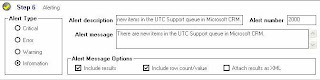
Here's how to do this using Scribe Insight (click on each image to see an enlarged version):
1. Within the Scribe Console, create a new Collaboration or use an existing Collaboration.
2. For each queue that you want to monitor, create a monitor.
3. Create a source connection to the Microsoft CRM database.
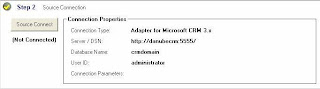
4. Configure the source so it uses a query against the Queue and Queueitem tables. Be sure the Filters tab includes the queue name(s) and the queueitem enteredon field > :LastRunDateTime (variable).

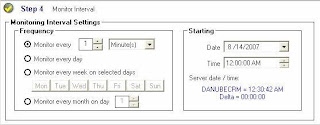
5. Set the Monitor Interval (e.g., every 5 minutes)
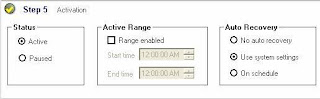
6. Activate the Monitor
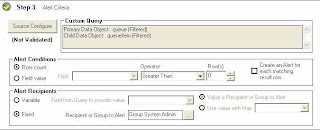
7. Set the Alerting Options
8. Assign Items to Queues and Check Alert Log
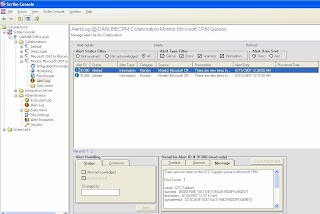
That's it! Overall, a very simple process. So if you have 5 queues, you would probably need 5 Scribe monitors. However, this would depend on who is monitoring each queue. If one person is monitoring all 5 queues, you could get away with just one Scribe monitor.
Questions? Thoughts? Suggestions? Please post a comment.
I was thinking of having a developer create a Windows service that ran queries against the queue and queueitem tables, determined if any new items had entered the queue since the last time the service ran, and if so, send notifications to the appropriate people for each queue. Each queue would require its own e-mail message and recipients.
However, this solution required custom programming, and we did not have the time or budget to go this route. Therefore, the only way we could do this was to use workflow rules.
Now, using workflow rules might seem like a good solution...until it's time to implement. Here's the problem we experienced:
Workflow rules are based on a specific entity. In our case, we needed to create similar workflow rules for 6 entities: task, e-mail, fax, phone call, service activity, and case.
So, if we had 6 entities that could be assigned to queues, and we had 5 queues to which these 5 entities could be assigned, that translates into 30 workflow rules! What a royal pain in the rear to create and maintain!
You might think that we could have created workflow rules for the queue entity, and you would be wrong. Queues and queue items are not valid for workflow rules.
Unfortunately, workflow rules were our only option, so that's what we did.
However, since then, I have discovered a much better way.
I just completed my training and certification in Scribe Insight. During the training, I realized that this product could be used to do exactly what our client wanted. Basically, monitor selected queues every 5 minutes. If one or more queue items have entered the queue since the last time the monitoring service ran, then send the appropriate e-mails to the appropriate users.
Here's how to do this using Scribe Insight (click on each image to see an enlarged version):
1. Within the Scribe Console, create a new Collaboration or use an existing Collaboration.
2. For each queue that you want to monitor, create a monitor.
3. Create a source connection to the Microsoft CRM database.

4. Configure the source so it uses a query against the Queue and Queueitem tables. Be sure the Filters tab includes the queue name(s) and the queueitem enteredon field > :LastRunDateTime (variable).


5. Set the Monitor Interval (e.g., every 5 minutes)

6. Activate the Monitor

7. Set the Alerting Options

8. Assign Items to Queues and Check Alert Log

That's it! Overall, a very simple process. So if you have 5 queues, you would probably need 5 Scribe monitors. However, this would depend on who is monitoring each queue. If one person is monitoring all 5 queues, you could get away with just one Scribe monitor.
Questions? Thoughts? Suggestions? Please post a comment.
Friday, August 3, 2007
How do I migrate/import data into Microsoft Dynamics CRM 3.0?
OPTIONS
When it comes to importing data into Microsoft CRM, there are a number of options to consider.
As discussed in the article "5 ways to import data", the five primary ways to import data into Microsoft CRM are:
Two options for third-party tools are:
I have used both of these tools, and I love them both.
So how do you decide which of the many options is best?
Well, it's as simple as answering the following questions. These questions identify situations that one or more of the options cannot handle. Therefore, choosing the best option becomes a process of elimination.
Well, Scribe Insight and the Scribe Adapter for Microsoft Dynamics CRM can handle both data migration/import AND integration with other systems.
c360 Import Manager can only be used for importing data into Microsoft CRM. It is not applicable for real-time systems integration. As a result of a reduced set of features, c360 Import Manager is less expensive than the Scribe solution.
SUMMARY
I have imported data into Microsoft CRM using every single option listed above, with the exception of the Data Migration Wizard for Microsoft Office Outlook with Business Contact Manager (I have yet to find one business using Business Contact Manager for Outlook).
Each option is appropriate for certain situations. Your job is to figure out the best option for your situation.
Since the best option is not always so obvious, Navint Microsoft Dynamics CRM consultants are available to assist with that determination. Don't be shy! Give us a call or send us an e-mail. We would be glad to share our knowledge.
When it comes to importing data into Microsoft CRM, there are a number of options to consider.
As discussed in the article "5 ways to import data", the five primary ways to import data into Microsoft CRM are:
- Bulk Import Wizard
- Data Migration Framework
- Data Migration Wizard for Microsoft Office Outlook with Business Contact Manager
- Microsoft Dynamics CRM Connector for Microsoft Dynamics GP
- Custom programming using the Microsoft CRM Software Development Kit (SDK)
Two options for third-party tools are:
I have used both of these tools, and I love them both.
So how do you decide which of the many options is best?
Well, it's as simple as answering the following questions. These questions identify situations that one or more of the options cannot handle. Therefore, choosing the best option becomes a process of elimination.
- Which entities need to be imported? Do you need more than Accounts, Contacts, Leads, and Campaign Responses?
- Do notes and attachments need to be imported?
- Do relationships between entities (e.g., contacts and parent accounts) need to be established?
- Is it a one-time import, or will the same import need to be done on an ongoing basis (e.g., import leads from multiple trade shows)?
- What is the source of the data?
Well, Scribe Insight and the Scribe Adapter for Microsoft Dynamics CRM can handle both data migration/import AND integration with other systems.
c360 Import Manager can only be used for importing data into Microsoft CRM. It is not applicable for real-time systems integration. As a result of a reduced set of features, c360 Import Manager is less expensive than the Scribe solution.
SUMMARY
I have imported data into Microsoft CRM using every single option listed above, with the exception of the Data Migration Wizard for Microsoft Office Outlook with Business Contact Manager (I have yet to find one business using Business Contact Manager for Outlook).
Each option is appropriate for certain situations. Your job is to figure out the best option for your situation.
Since the best option is not always so obvious, Navint Microsoft Dynamics CRM consultants are available to assist with that determination. Don't be shy! Give us a call or send us an e-mail. We would be glad to share our knowledge.
Subscribe to:
Posts (Atom)


